
Navigate the dashboard
Use the dashboard to build an agent, watch what happened on calls, and decide how callers reach it. This is a map for choosing the right place to work, not a checklist of pages you must visit.
How to open any page
- Sign in at dashboard.icallagent.com.
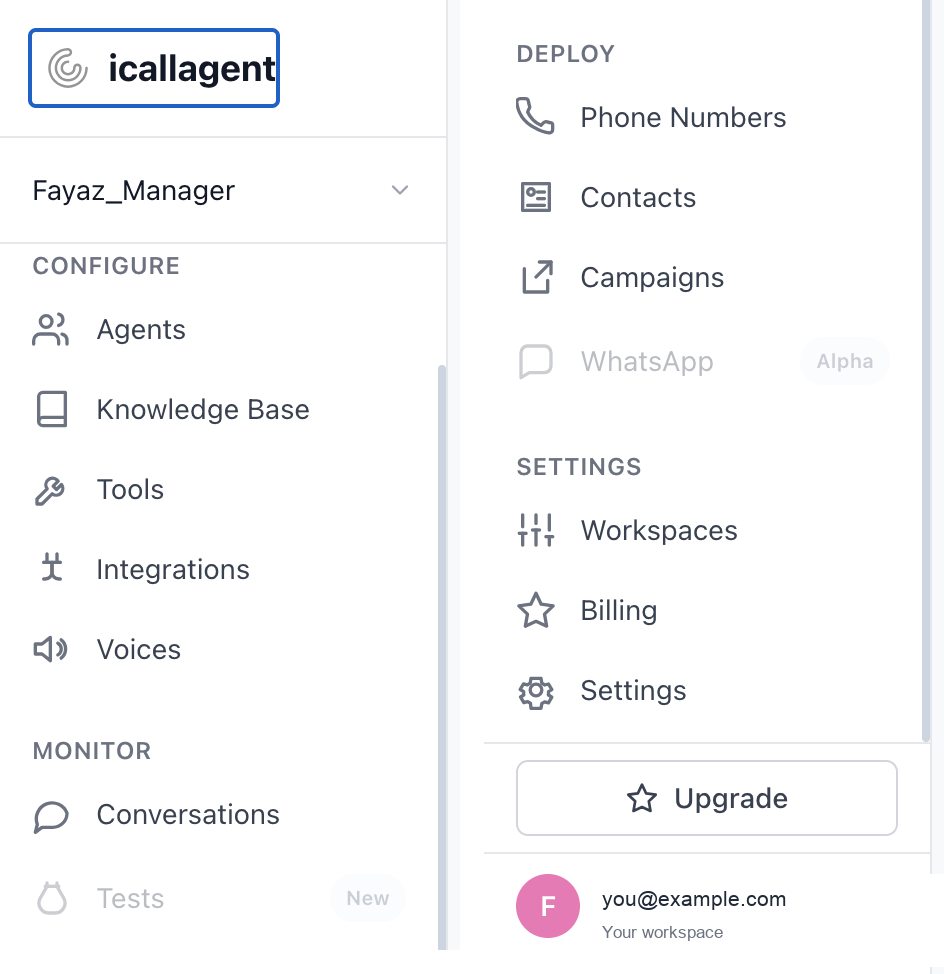
- Use the left sidebar. Items are grouped under labels you can see in the sidebar itself: Configure, Monitor, Deploy, and Settings.
- Click a sidebar item. The main panel is that page.
- For agent-only work: left sidebar → Configure → Agents → click a row → use the top tab row (Agent Overview, Knowledge Base, Analysis, Tools, Test, Advanced).
Everything you do applies to the workspace currently selected — the switcher sits at the top of the sidebar, above Home.
Start with this loop
- Configure → Agents — create the agent and set its behaviour and voice.
- Open that agent → Test → Start test call — speak to it before anyone else does.
- Monitor → Conversations — inspect the transcript after a real or test call.
- Configure → Knowledge Base or Tools — add only what the transcript shows it needs.
- Deploy → Phone Numbers, Campaigns, or the web widget — reach real callers when the conversation is ready.
For the actual build sequence, see Build your first agent. Use the rest of this page when you are asking “where do I click for that?”.
Home
Path: left sidebar → Home.
The landing view after login. Activity across your agents for a chosen period, with a filter for all agents or a specific one.
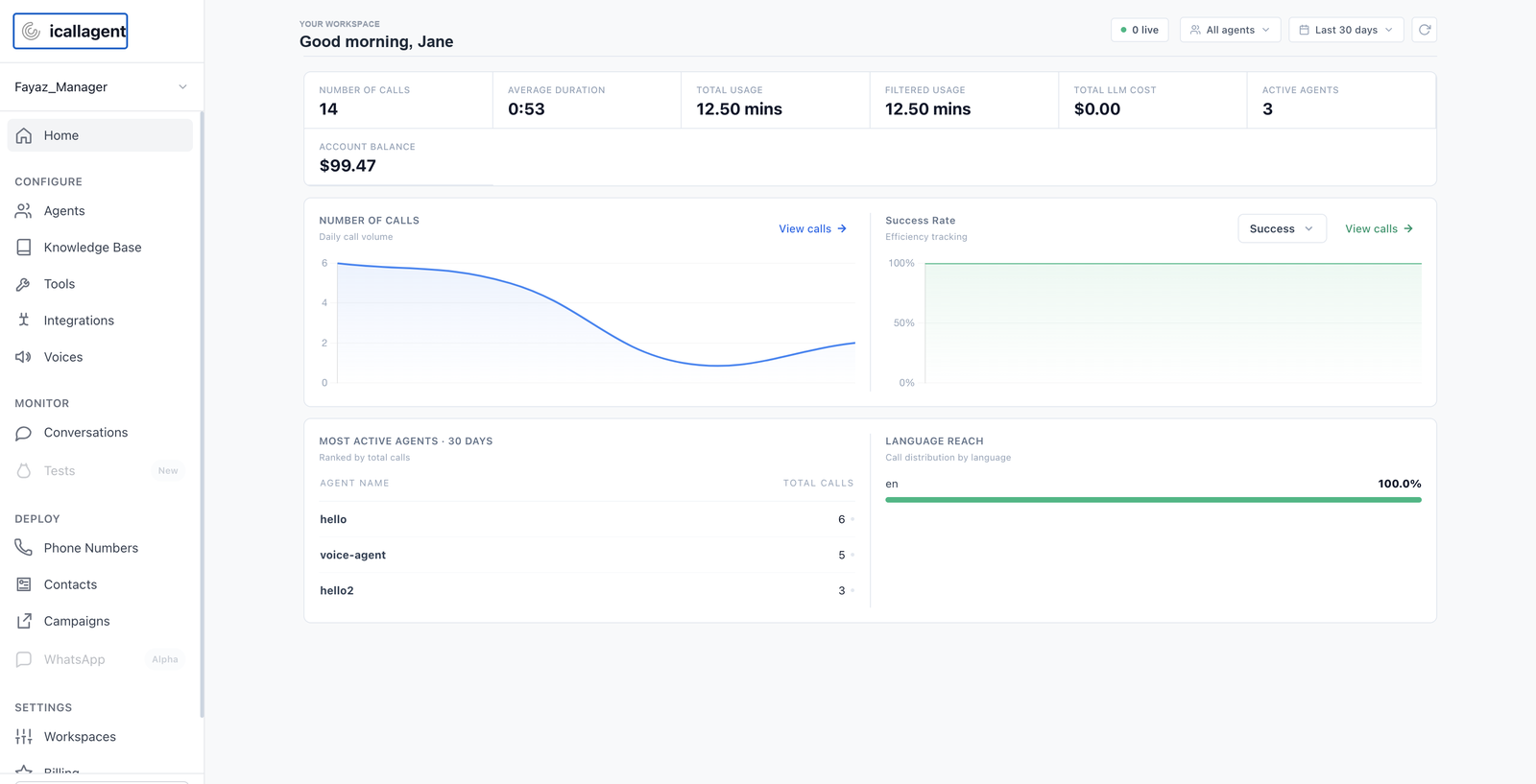
Open it when you want a quick read on volume — not for debugging a specific call. That's Conversations.
Configure
Agents
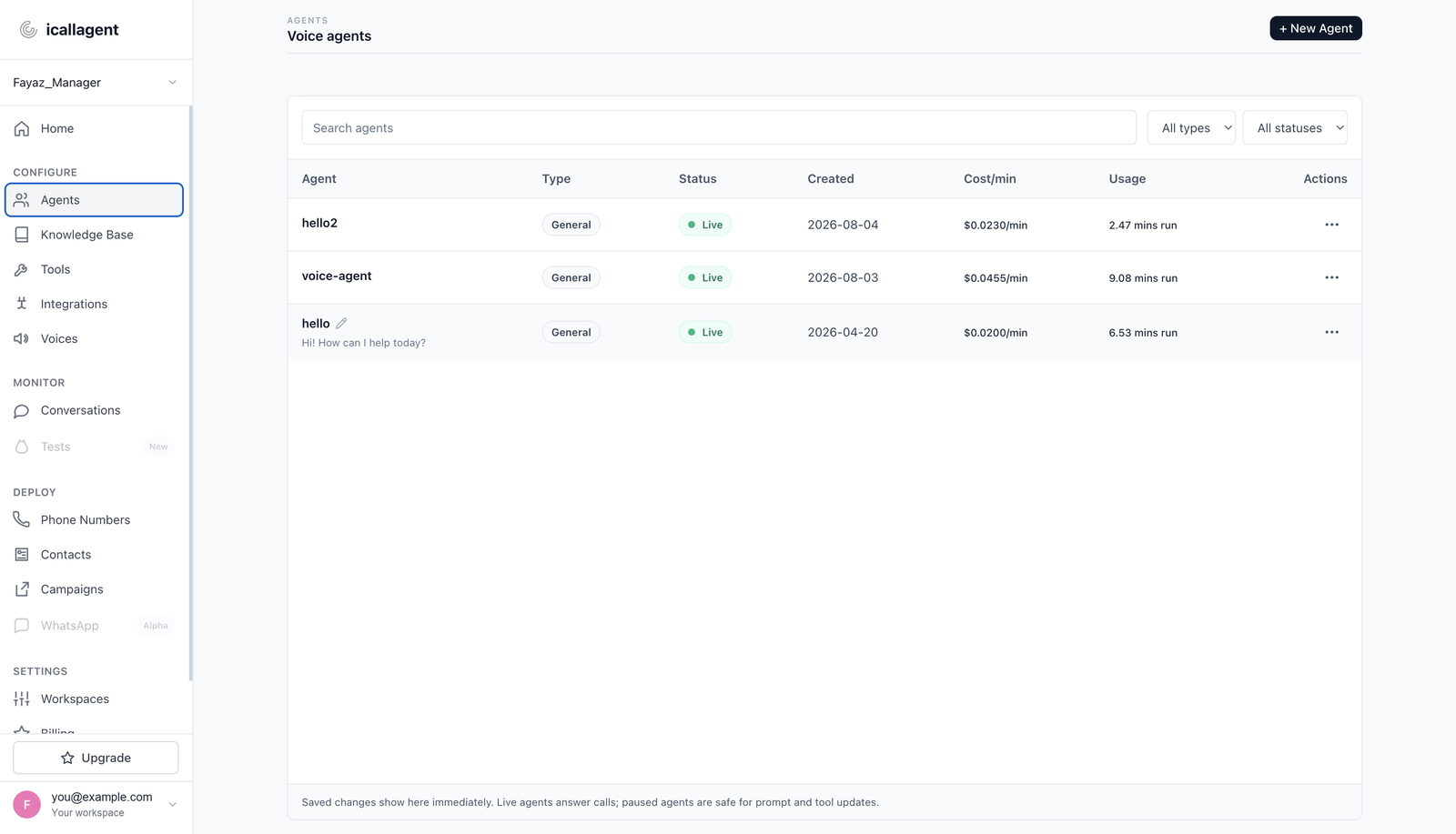
Path: left sidebar → Configure → Agents.
The list of every agent in the workspace, filterable by status and type, showing each agent's blended cost per minute — the combined TTS + transcription + model rate for the choices you've made. Changing model or voice changes this number.
From here:
| Action | Clicks |
|---|---|
| Create | + New Agent (or Create your first agent when empty) |
| Edit | Click the agent row → top tabs |
| Save editor | Save changes (side panel) and/or Close and save (top-right X) |
Build your first agent walks the six agent tabs.
Open it when you're building, or comparing what your agents cost.
Knowledge Base
Path: left sidebar → Configure → Knowledge Base.
Documents your agents search during calls, browsable per agent and per period. Upload here, or from an individual agent's own Knowledge Base tab (Agents → agent → Knowledge Base).
Knowledge is attached to a specific agent — a document on one agent isn't visible to another, even in the same workspace. That's the usual cause of "the agent can't find something I definitely uploaded".
Open it when an agent needs to know facts about your business. See Knowledge base.
Tools
Path: left sidebar → Configure → Tools.
Actions your agents can take beyond speaking. Create a tool, configure it, then assign it on Agents → agent → Tools.
Tools backed by an outside system need that integration connected first — with none connected you'll see "No connected integrations available" and a link to Integrations. Built-in tools like ending or transferring a call need nothing.
Open it when an agent needs to do something, not just answer. See Tools.
Integrations
Path: left sidebar → Configure → Integrations.
Connect the systems you already use — Slack, Salesforce, HubSpot, Google Calendar, Google Sheets, Twilio, Telnyx, Make.com. Connected once per workspace, then available to every agent in it.
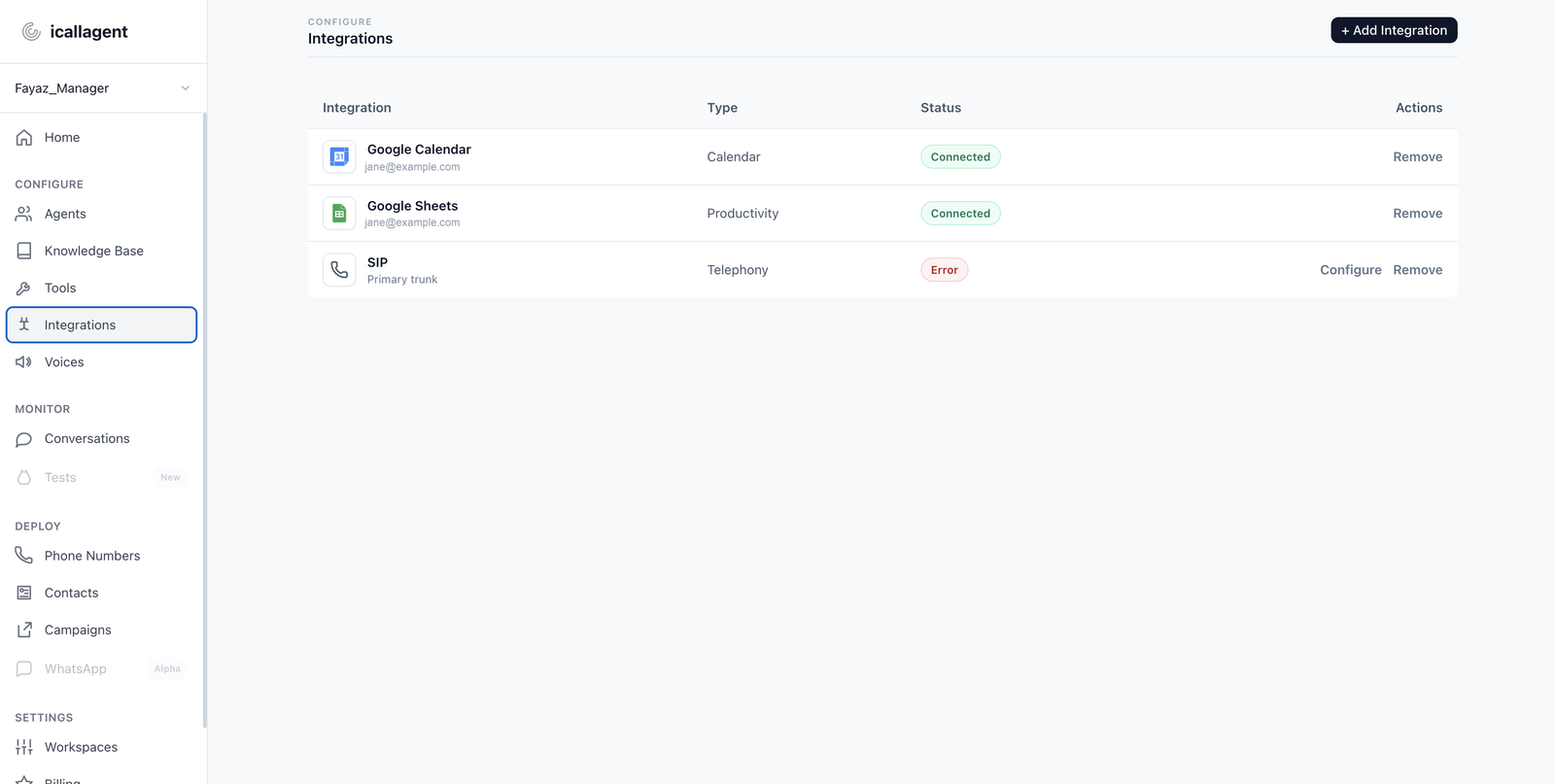
Two sub-pages handle bring-your-own telephony — see SIP trunking and BYOC for field-by-field setup:
- SIP — register a SIP device or PBX into iCallAgent.
- Outbound Trunk (BYOC) — route outbound calls through your own carrier.
Open it when you're plugging in a CRM, a calendar, or your own telephony. See Integrations.
Voices
Path: left sidebar → Configure → Voices.
The voice library. Every voice available to your account, grouped by provider, with a sample you can play before choosing. To put a voice on an agent: Agents → agent → Agent Overview → Voice settings.
Open it when you're picking how an agent sounds. See Choosing a voice.
Monitor
Conversations
Path: left sidebar → Monitor → Conversations.
Every call, inbound and outbound, browser and phone. Filter by agent, direction, status and workspace; choose which columns to show; open one for the full detail panel.
Each conversation gives you the transcript turn by turn, which tools ran and what they returned, per-turn timing, the recording if enabled, and how the call ended.
This is the most useful page in the dashboard. Nearly every "why did my agent do that?" is answered by reading what it actually heard — usually something different from what was said.
Open it when anything goes wrong, and after every test call.
Tests
Listed under Monitor with a New badge, but greyed out and not clickable — it's a placeholder for a feature that isn't built yet. Hovering shows "Tests — coming soon".
Testing today happens on an individual agent's Test tab: Configure → Agents → agent → Test → Start test call. See Testing your agent.
Deploy
Phone Numbers
Path: left sidebar → Deploy → Phone Numbers.
Numbers provisioned through a connected Twilio or Telnyx account, and which agent each routes to. Sync all pulls the current list from the provider.
You need an integration connected before numbers appear here (Configure → Integrations first).
Open it when you want an agent to answer a real number, or to place outbound calls with a caller ID. See Phone numbers.
Contacts
Path: left sidebar → Deploy → Contacts.
People your agents can call or have called. Add them with + Add contact, or Import in bulk from a CSV, Excel file, or Google Sheet link.
Each contact carries name, phone, email, company, department and notes, plus two fields that control whether they can be called at all:
- Consent —
Granted,Implied,UnknownorRevoked - Blacklist — blocks all future outbound attempts
Both are checked before any outbound call. A blocked contact is never dialed.
Open it when you're preparing outbound calling — including calling your own phone to test.
Campaigns
Path: left sidebar → Deploy → Campaigns → + New Campaign.
Scheduled outbound calling. A campaign pairs an agent and a phone number with a list of contacts and rules about when dialing is allowed.
Creating one opens a wizard covering contacts, the numbers to call from, schedule and limits (active days, call-from/call-until, dates to exclude, concurrency), and compliance including an AI disclosure script.
Only campaigns set to active are ever dialed. Draft holds contacts without calling anyone; Paused stops one mid-flight. Each campaign has its own analytics view.
Open it when you want to call more than one person. See Outbound campaigns.
WhatsApp
Listed under Deploy with an Alpha badge, and like Tests it is greyed out and not clickable — a placeholder, not a working page.
Settings
Workspaces
Path: left sidebar → Settings → Workspaces.
Create, rename and delete workspaces, and switch between them. See Workspaces.
Billing
Path: left sidebar → Settings → Billing
(also linked directly as Billing in the Settings group).
Current balance, add funds, and balance activity. Open Billing when calls stop connecting — an exhausted balance refuses new calls before any audio flows, which looks like a broken agent rather than a billing problem.
Settings
Path: left sidebar → Settings → Settings (full settings page).
Tabbed, and the tabs are worth knowing individually:
| Tab | What's there |
|---|---|
| Org Settings | Account details and your account ID. The tab you land on |
| Billing | Current balance, add funds, and balance activity across payments |
| Add-ons | Optional extras on your plan |
| API Keys | Create and revoke personal API keys for the public API. Shown in full once, at creation |
| Compliance | Suppression list, including bulk upload |
Profile
Your own user details, as distinct from the account (often via the profile menu in the sidebar footer).
Which page do I want?
| I want to… | Click path |
|---|---|
| Change what the agent says | Configure → Agents → agent → Agent Overview |
| Change how it sounds | Configure → Voices (browse), then agent → Agent Overview → Voice settings |
| Teach it facts | Configure → Knowledge Base, or agent → Knowledge Base |
| Let it book, look up or post | Configure → Integrations, then Tools, then agent → Tools |
| Talk to it right now | Configure → Agents → agent → Test → Start test call |
| Find out why a call went wrong | Monitor → Conversations → open the call |
| Give it a phone number | Configure → Integrations (Twilio/Telnyx), then Deploy → Phone Numbers |
| Call my own phone as a test | Deploy → Contacts, then Deploy → Campaigns (full walkthrough) |
| Call a list of people | Deploy → Campaigns → + New Campaign |
| Add money / calls stopped | Settings → Billing |
| Get an API key | Settings → Settings → API Keys tab |
Next
- Testing your agent — three ways to hear it
- Call your own phone — the first real call
- Workspaces