
Choosing a voice
Picking a voice feels like a taste decision. It's really three decisions — how it sounds, how fast it starts speaking, and what it costs — and the last two vary between providers far more than most people expect.
Provider first, then voice
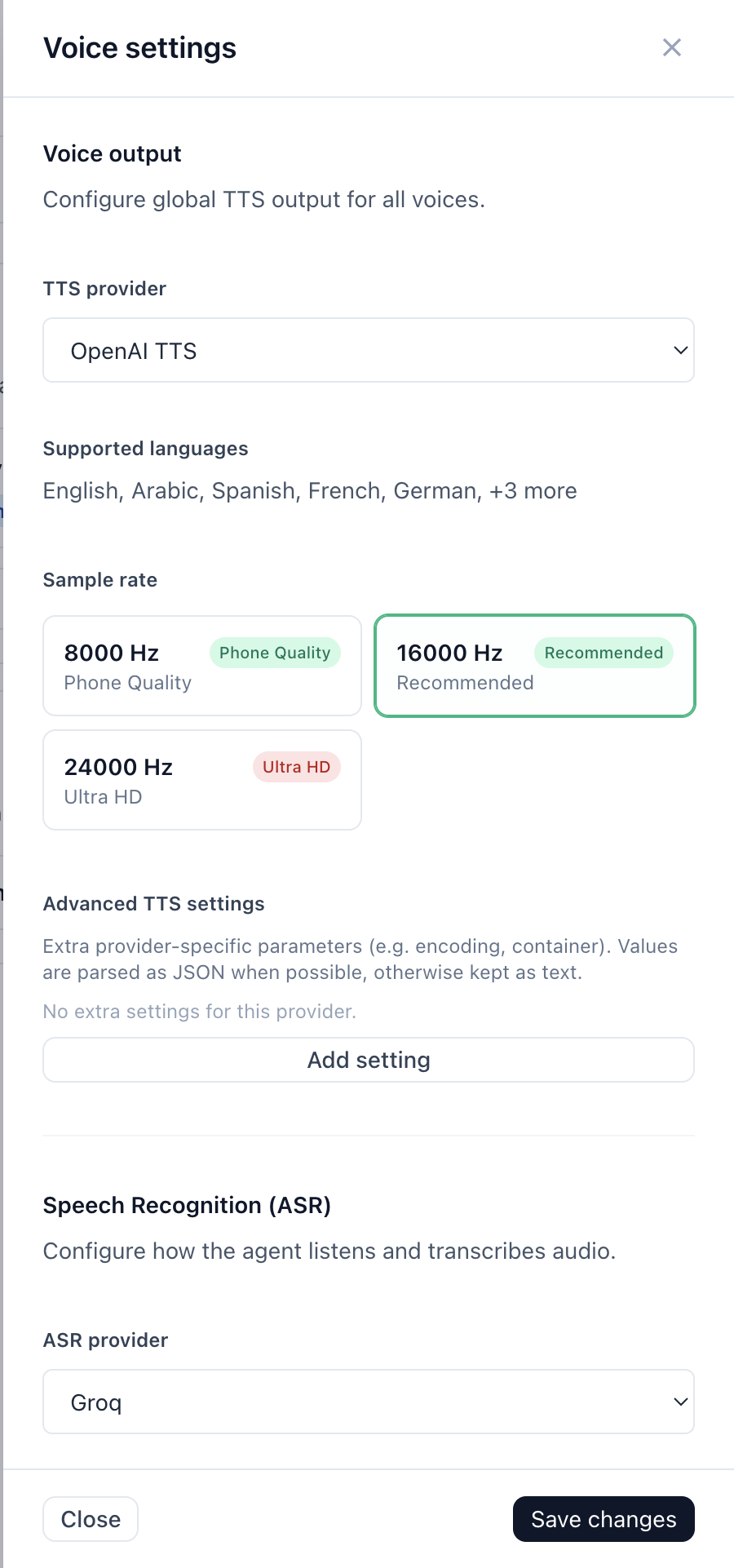
Voices belong to providers. Switching provider invalidates your voice selection, so choose in that order.
Browse the library
- Open the dashboard.
- Left sidebar → Configure → Voices.
- Play samples. This page is the source of truth for what your account can use.
Apply a voice to an agent
- Left sidebar → Configure → Agents.
- Open the agent → Agent Overview.
- Open Voice settings.
- Choose provider, then voice.
- Click Save changes in the side panel if it opened, or Close and save when you leave.
The platform supports several TTS providers, and which ones are enabled depends on your account.
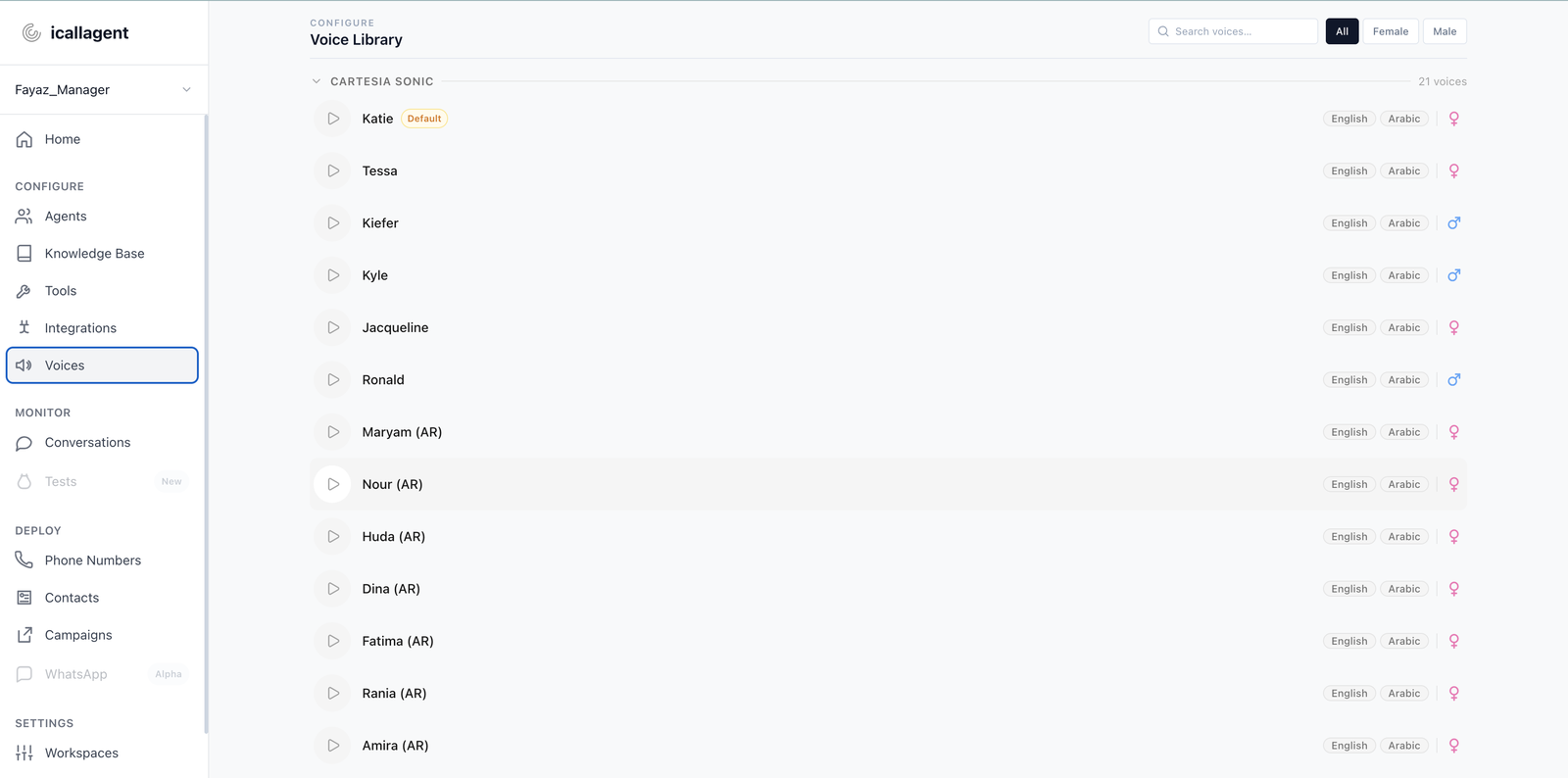
The platform can run: Cartesia, ElevenLabs, Deepgram, OpenAI, Google Gemini, Groq PlayAI, Inworld, Kokoro and Amazon Polly.
The three things that differ
1. How it sounds
The obvious one, and the one you can judge yourself. Play the sample.
Two things to listen for that a five-second sample hides:
- How it handles your actual content. A voice that reads marketing copy beautifully may mangle product codes, street names, or your company name. Test with a real sentence from a real call.
- How it wears over two minutes. Voices that sound characterful in a clip can become tiring across a whole conversation. Boring is usually right for a phone agent.
2. How quickly it starts speaking
This is the one people underestimate.
What matters is not the average time to first audio — it's the worst case. A provider that usually replies quickly but occasionally stalls for several seconds produces a worse call than one that's consistently a bit slower, because every stall is dead air the caller interprets as the line dropping.
Providers also differ in shape. Some send audio in a fast burst as soon as it's ready. Others trickle it out. A trickle that's slower than real-time causes gaps mid-sentence, which sounds far worse than a slightly longer pause before the reply starts.
Judge the tail, not the average
When comparing providers, place a dozen calls rather than one. A single good call tells you almost nothing — the failure mode is occasional, and occasional is exactly what your callers will hit.
3. What it costs
Per-character pricing across TTS providers spans a wide range — the cheapest and most expensive options differ by more than an order of magnitude.
That sounds decisive, and for high outbound volume it can be. But note what you're buying: the cheaper providers are generally the ones with less consistent delivery. On a low-volume support line the cost difference is negligible and consistency wins easily. On a large outbound campaign the arithmetic changes.
Your agent's blended per-minute rate — TTS plus transcription plus model — is calculated automatically from your selections, so you can see the effect of a change before committing to it.
Speed, pitch, volume
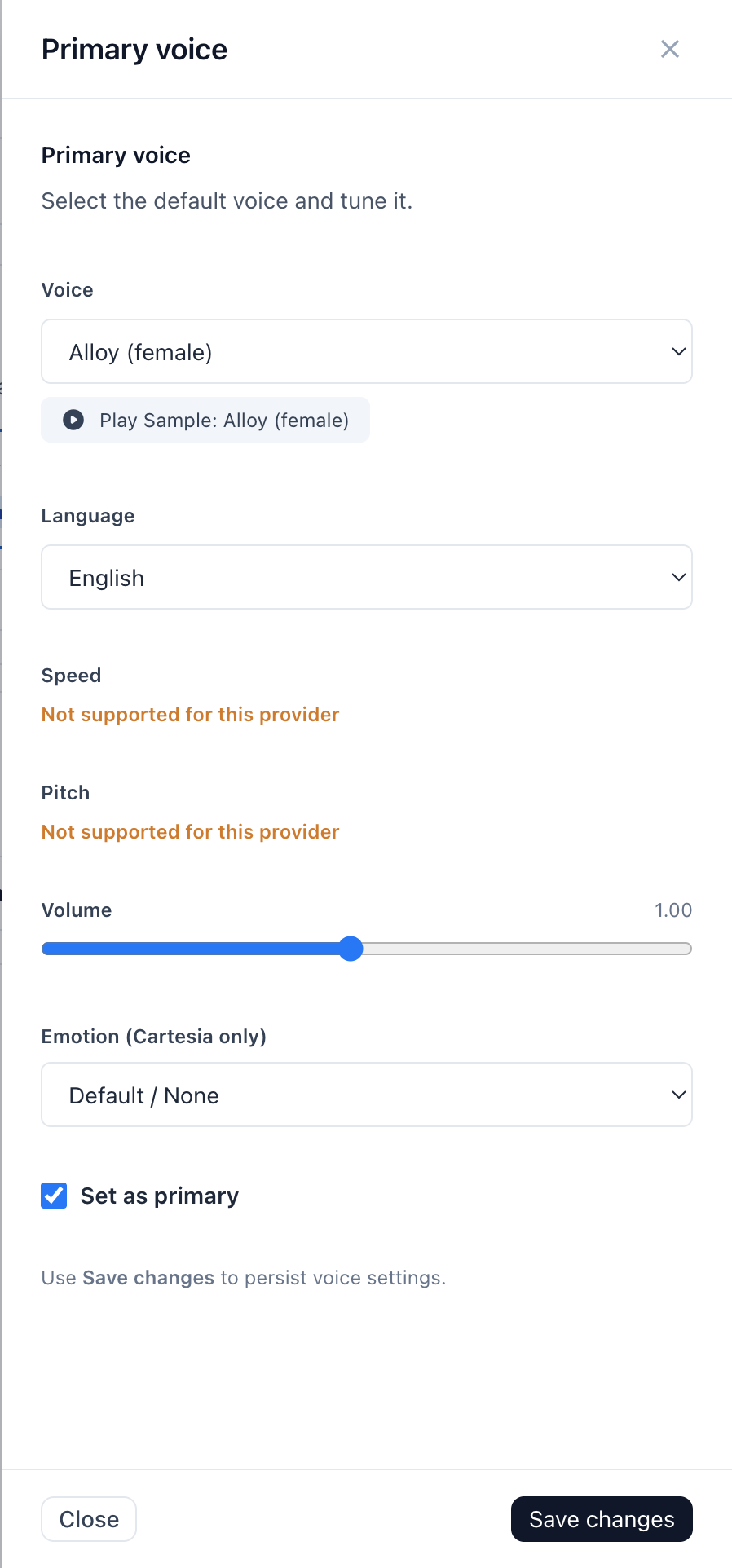
Agents → agent → Agent Overview → click the voice to open Primary voice.
| Control | Guidance |
|---|---|
| Speed | The one worth adjusting. Most voices default slightly slow for phone. Small changes are large — ±0.1 is very noticeable. |
| Pitch | Use sparingly. Large shifts sound synthetic. |
| Volume | Usually leave alone; phone lines normalise anyway. |
Not every provider supports all three
Speed and pitch depend on the provider. Where they aren't available the panel replaces the slider with "Not supported for this provider" rather than letting you set a value that does nothing — so if a control is missing, that's the provider, not a bug.
Change one, listen to a full test conversation, then decide. Judging these from a single sentence doesn't work.
Emotion
The Primary voice panel labels this one plainly: Emotion (Cartesia only). On every other provider the setting does nothing.
One caveat even on Cartesia: it only works when the words match. An "excited" direction on flat text mostly changes pace. Emotion in TTS amplifies what the writing already implies — it doesn't replace it, which means your prompt does more of the emotional work than the dropdown does.
Language
Agents → agent → Agent Overview → set Language.
Two independent things have to line up:
- The agent must decide to reply in that language. That's the LLM, driven by your prompt and the language setting.
- The voice must be able to speak it. A voice built for English reading French produces French with an English accent, at best.
Setting the language alone isn't enough — pick a voice that supports it. Not every provider covers every language, and coverage varies by model within a provider.
Cloning your own voice
Navigate
- Left sidebar → Configure → Voices (now expandable) → Clone Voice.
- Enter a name and pick a language.
- Record (opens full screen, with a 3-2-1 countdown and a live level meter so you can see the mic is picking you up) or Upload a file.
- Click Clone this voice.
Cloning is handled by Cartesia's Instant Voice Clone — only Cartesia for now. ElevenLabs is a possible future addition, held back until its account plan is confirmed to support instant cloning.
What to read
Each language ships with a handful of short prompts (about 40-50 seconds of reading in total), shown one at a time with Back/Next either side, chosen for decent phonetic coverage rather than a few rushed words — a clone made from a couple of words of flat speech comes out sounding wrong. Preview text opens the same full-screen view without recording, if you'd rather rehearse first or read along while recording with something else.
Minimum ten seconds
Cartesia needs at least 10 seconds of audio to clone a voice at all, and the dashboard won't submit a recording shorter than that. Up to 3 minutes is accepted; more than that doesn't improve the result.
After submitting
Cloning runs in the background and typically finishes in a few seconds. The voice appears in the list below the form with a status: Cloning…, Ready, or Failed (with the reason, if Cartesia rejected the sample). You can play back the original sample you recorded or uploaded from that same list.
Once a voice is Ready, pick it from the Voice dropdown on any agent, listed alongside the provider's stock voices and labelled (your voice).
Who can see it, and what it costs
A cloned voice is private to the workspace that created it — no other workspace can see it or use it, and it never appears in the public voice catalog. Cloning itself is free. Once it's ready, calls that use it are billed at the same per-minute rate as Cartesia's stock voices — there's no extra charge for using a voice you cloned yourself.
Requires a topped-up account
Voice cloning is available once you've made a real payment (a top-up, a purchase, or a paid subscription) — it isn't available on trial/signup credit alone.
A reasonable default
If you don't want to think about it:
- Pick a clear, unremarkable voice in your language. Character is a liability on a support line.
- Leave speed, pitch and volume at their defaults until you've heard a real conversation.
- Nudge speed up slightly if it feels sluggish. That's usually the only change needed.
- Revisit the provider only if you hit dead air or your volume makes cost matter.
Next
- Writing the system prompt — does more for tone than any voice setting
- Testing your agent — how to evaluate a voice properly
- Build your first agent