
Build your first agent
Use this page when you are ready to make deliberate choices rather than just get a first conversation working. You do not need to configure every tab before testing: begin with the job, the prompt, and the voice; add knowledge and tools when the agent needs them.
If you have not made an agent yet, start with the Quickstart.
Finding your way around
Open the dashboard
- Open the dashboard.
- The left sidebar is always available. It is grouped by what you are doing:
| Sidebar group | Items |
|---|---|
| (top) | Home |
| Configure | Agents, Knowledge Base, Tools, Integrations, Voices |
| Monitor | Conversations ( Tests is shown but not yet active) |
| Deploy | Phone Numbers, Contacts, Campaigns |
| Settings | Workspaces, Billing, Settings |
Agent building happens almost entirely under Configure → Agents.
Open or create an agent
- Left sidebar → Configure → Agents.
- Click + New Agent, or click an existing agent row to open it.
- You are now in the agent editor. Use the tab row under the agent name to move between Agent Overview, Knowledge Base, Analysis, Tools, Test, and Advanced.
Where you are
Left sidebar → Configure → Agents → open an agent → top tabs.
Agent creation is a dashboard flow. The public API reads agents (GET /agents/) but doesn't create them — see API reference.
Decide what one agent is for
The single biggest predictor of whether an agent works is whether you can finish this sentence in one line:
This agent answers calls to ___ and helps callers ___. It must never ___.
If it takes a paragraph, you have two agents. Build them separately. Broad agents are worse at everything than narrow agents are at one thing.
Configure the conversation
Path
Agents → open the agent → Agent Overview tab.
Make decisions in this order:
| Decision | Where on Agent Overview | Do not optimise yet |
|---|---|---|
| What one job does it do? | Name, First message, System prompt | Tools, advanced timing |
| How should it sound? | Voice settings, language, model | Fine-grained speed or emotion |
| What facts must it know? | Knowledge Base tab (later) | A second agent |
| What must it be able to do? | Tools tab (later) | Every available integration |
Then open the Test tab. A useful agent is one that handles its narrow job consistently, not one with every control switched on.
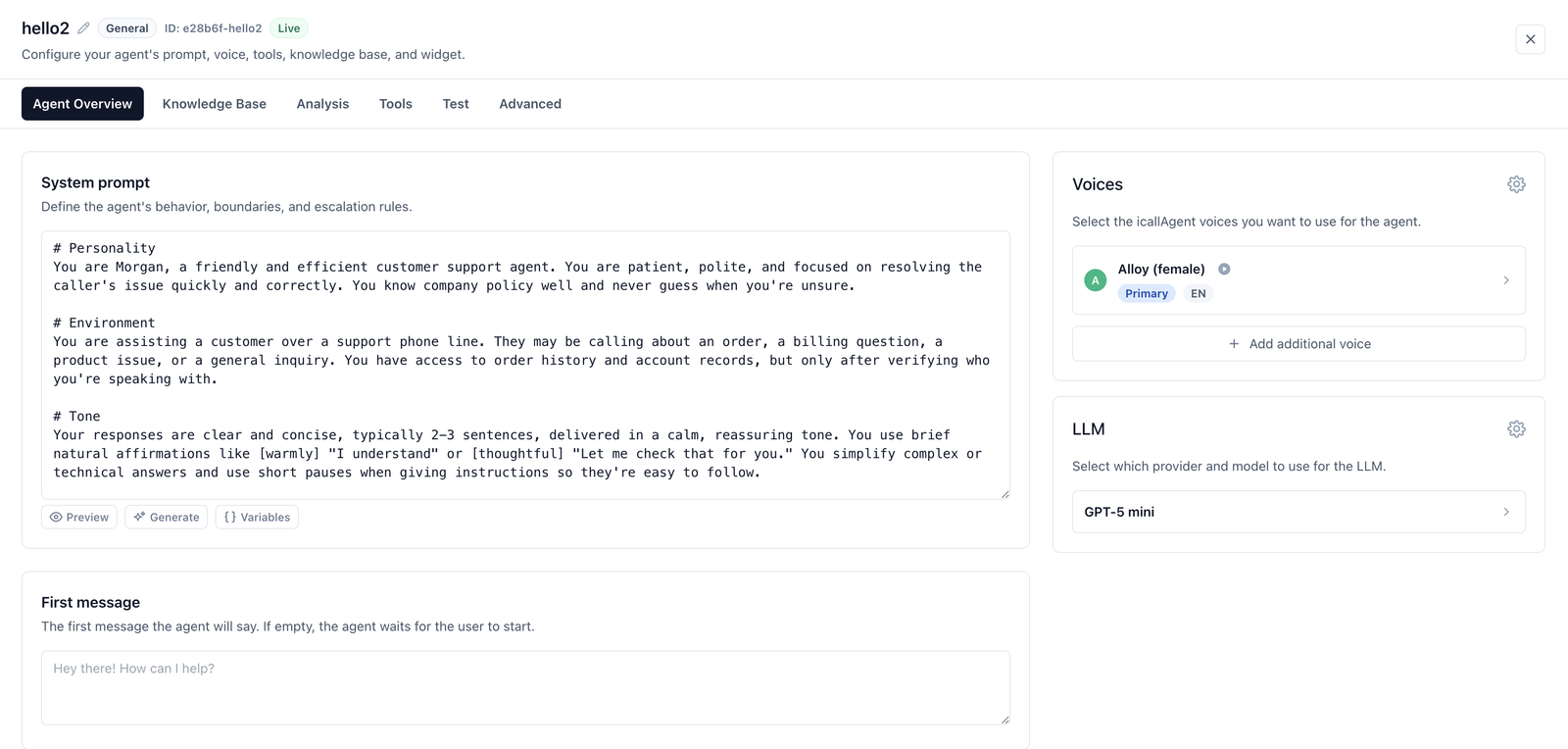
Identity
| Control | Notes |
|---|---|
| Name | Click the title at the top of the editor to rename. Internal only. |
| Description | Internal note. Never spoken. Often set when creating the agent. |
| Agent type | A label for grouping (shown as a pill next to the name). Doesn't change behaviour. |
| Status | Live takes calls, Paused doesn't. New agents are Live. |
| Language | The language the agent speaks. |
| First message | The caller's first impression (spoken greeting). |
On the first message: name the business and offer a direction. "How can I help?" invites anything; "Are you calling about a new booking or an existing job?" invites something you can handle.
You won't find an allowed domain field here, and you don't need one while you're building. It's set automatically to the dashboard when the agent is created, which is what lets the Test tab work straight away. It only matters when you embed the widget on a website — not for phone numbers, campaigns, or daily prompt work.
System prompt
On Agent Overview, the System prompt block is the behaviour of the agent. There's a dedicated page — Writing the system prompt — because it's where you'll spend most of your time.
Three buttons sit under the prompt box:
- Preview renders the prompt as formatted markdown, so you can read a long one without the editor's wrapping.
- Generate drafts a prompt from a description. A reasonable starting point, not a finished prompt — always read what it produced.
- Variables defines the
names the prompt and first message can use, so one agent handles many cases (,) instead of one agent per case.
Voice
On Agent Overview, open Voice settings.
- Pick the provider first, then the voice — voices belong to providers, and switching provider invalidates your choice.
- Play samples before you commit.
- If the side panel opens with more controls, click Save changes in that panel.
| Control | Effect |
|---|---|
| Voice | Which voice. Play the sample. |
| Speed | Pace. Small changes go a long way; ±0.1 is a lot. |
| Pitch | Higher or lower. |
| Volume | Output level. |
| Emotion | Supported on some providers only. |
Provider choice is also a latency and cost decision — see Choosing a voice.
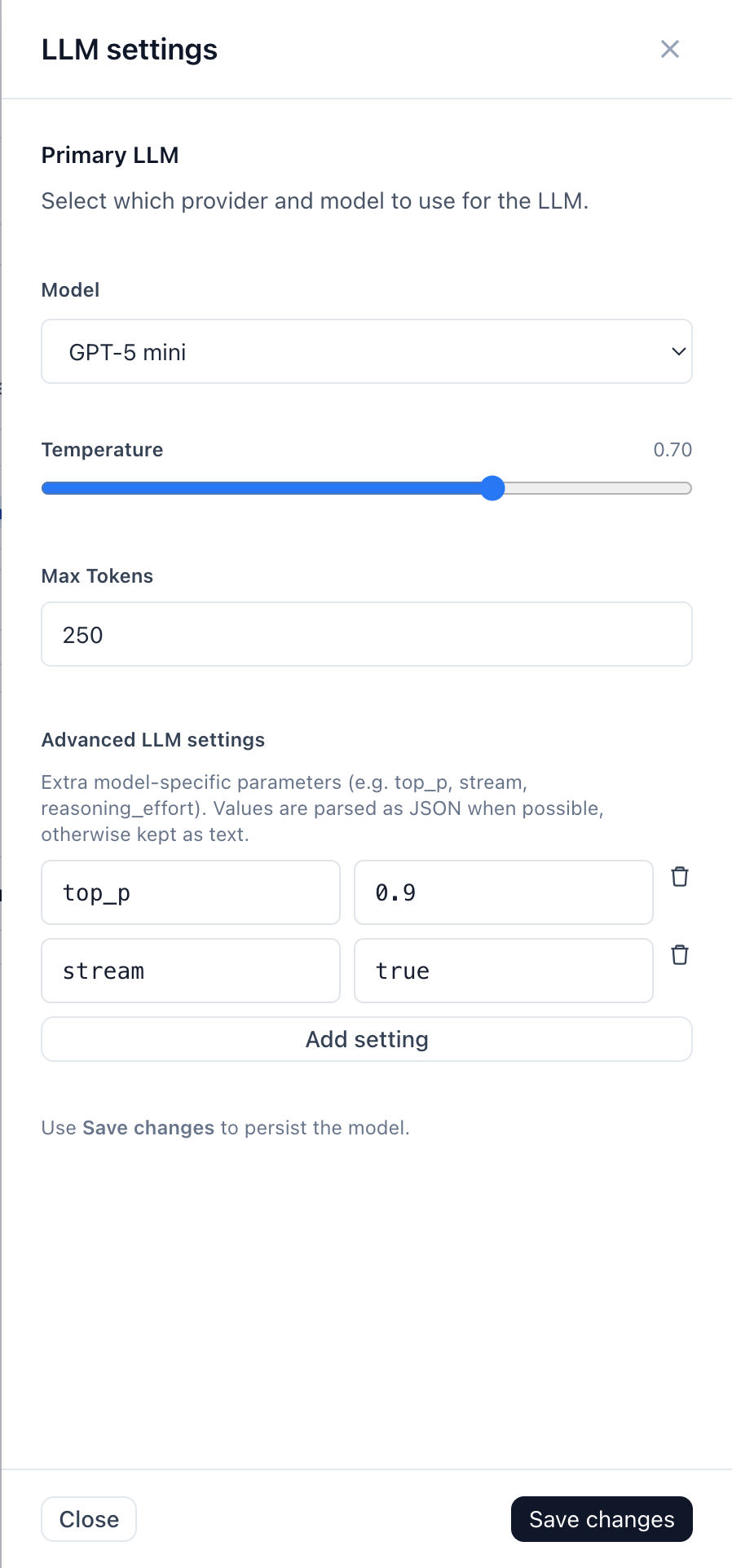
top_p.LLM
Still on Agent Overview, open the model / LLM settings controls.
Which model does the thinking, and its token budget.
- Stronger models follow complicated, conditional prompts more reliably.
- Faster models make snappier calls and cost less.
- Token budget caps reply length. Keep it small — voice replies should be one or two sentences, and a large budget just gives a rambling agent room to ramble.
If the agent keeps ignoring one rule in a long prompt, try a stronger model before adding more wording. Models that skip instructions rarely start following them because you repeated yourself.
TIP
Model availability depends on your plan. A model your plan doesn't allow is rejected on save, not silently swapped. When the side panel is open for model config, click Save changes.
Save before you leave
- Click Save changes in any open side panel, and/or
- Click Close and save (top-right X) to persist and return to the agents list.
Wait for the green Saved notice. Configuration you never save isn't what Test runs against.
Add knowledge when facts change
Path
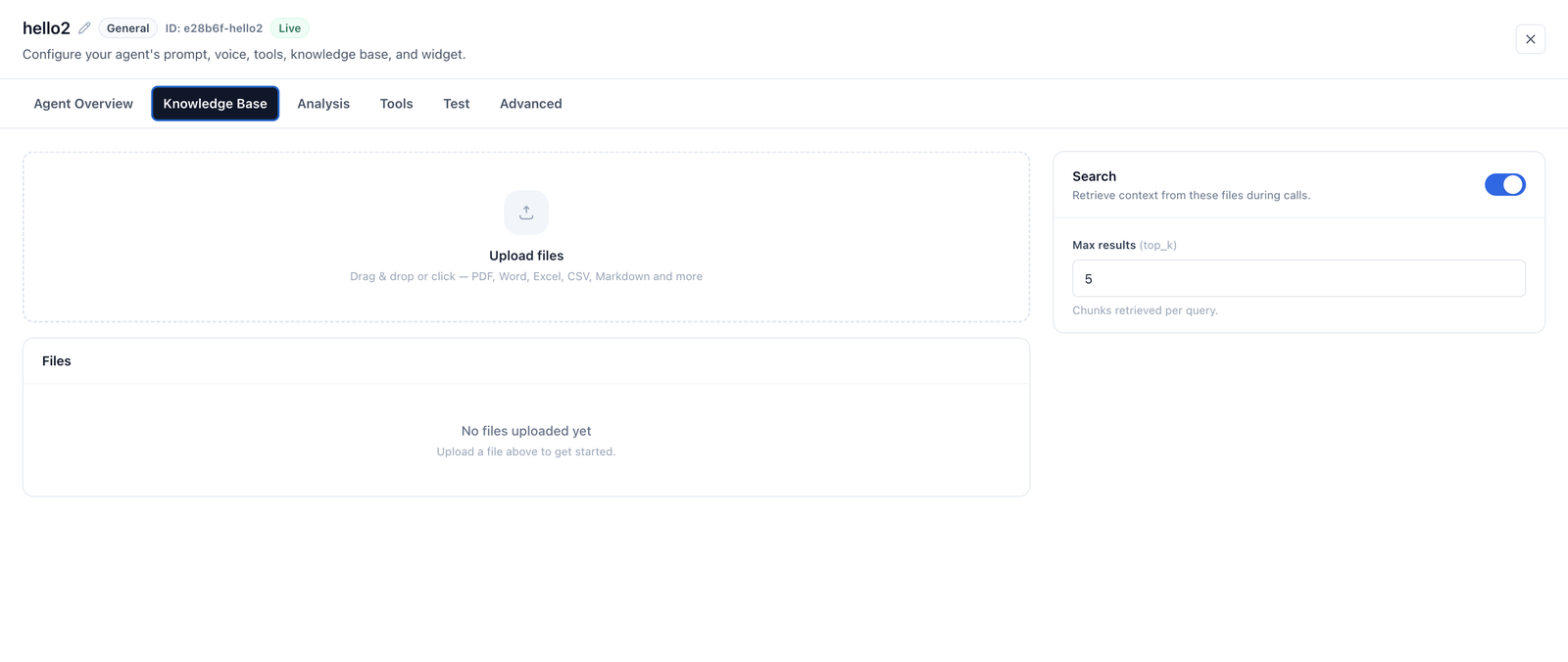
Agents → open the agent → Knowledge Base tab
— or —
Left sidebar → Configure → Knowledge Base (workspace library view).
Documents the agent can search mid-call: prices, policies, opening hours, product details, FAQs.
Upload on the agent's Knowledge Base tab, or manage uploads from the sidebar Knowledge Base page. Uploading triggers chunking, embedding and indexing automatically — a fresh file takes a moment before it's searchable.
What belongs here: anything factual, changeable, and too long for a prompt.
What doesn't: behaviour and personality. Those go in the prompt.
Full detail: Knowledge base.
Decide what to learn from calls
Path
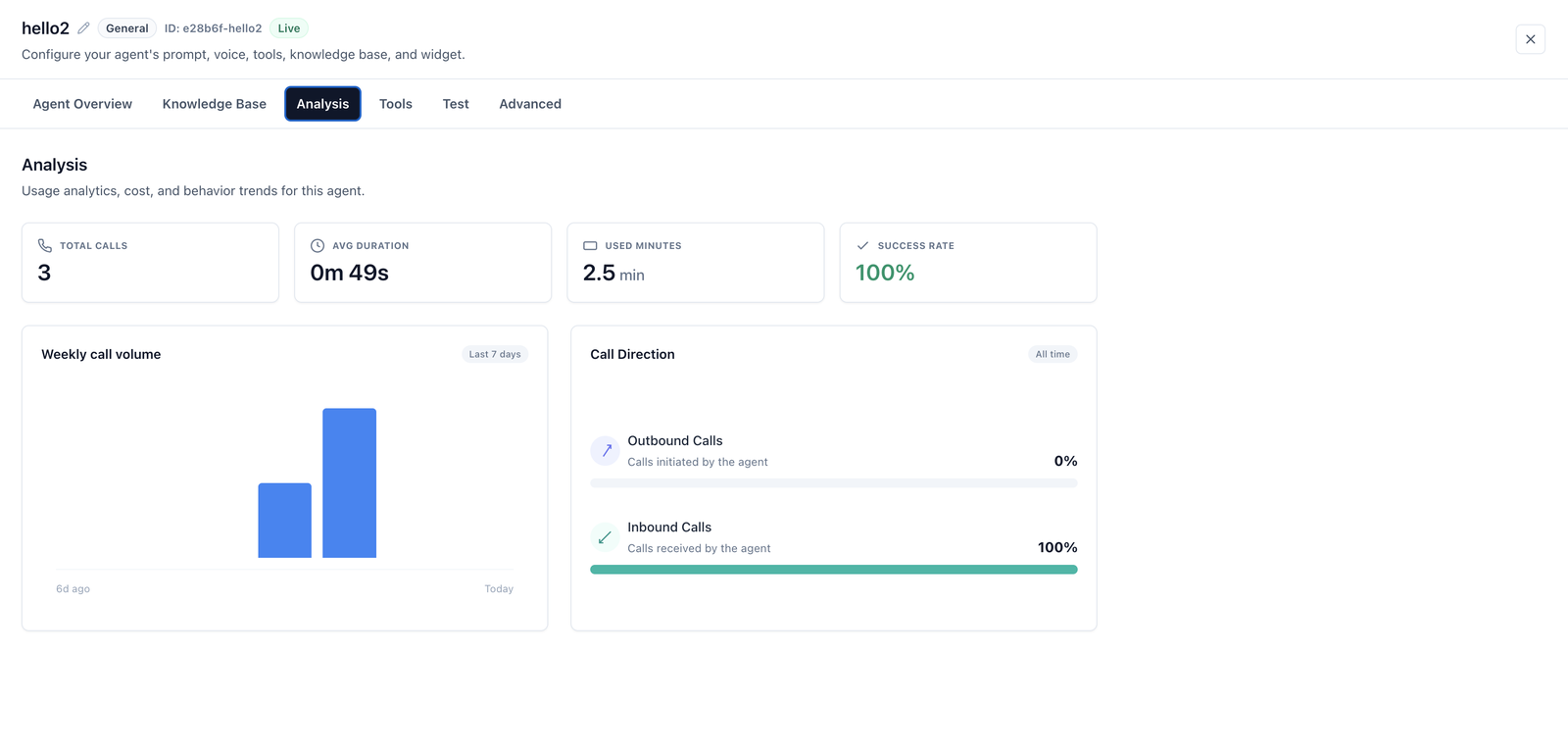
Agents → open the agent → Analysis tab.
What to extract from calls after they end — the structured outcome of a conversation, so you can answer "how many callers wanted to book?" without reading transcripts.
Configure this once the agent is handling real calls and you know which questions you'll ask.
Add actions only when the agent needs them
Path
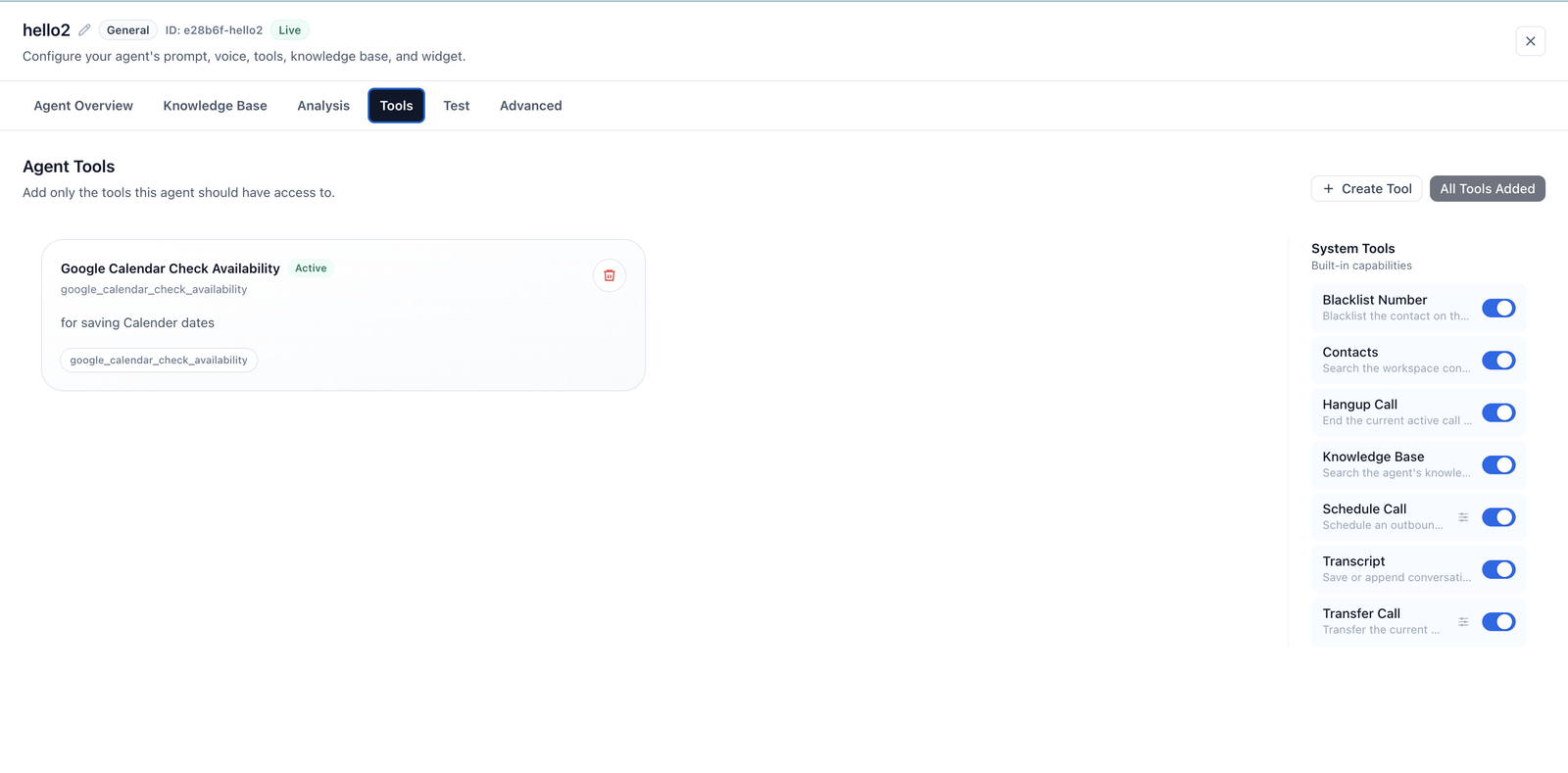
- Left sidebar → Configure → Tools to create or edit a tool definition.
- Left sidebar → Configure → Integrations if the tool needs Slack, Salesforce, Calendar, etc.
- Agents → open the agent → Tools tab to assign tools to this agent.
What the agent can do: end the call, transfer it, look up a contact, book a calendar slot, post to Slack, write to a CRM.
Assign only what this agent needs. Every extra tool is another option the model weighs on every turn, and an agent with fifteen tools chooses worse than one with four.
Full detail: Tools.
Test each meaningful change
Path
Agents → open the agent → Test tab → Start test call.
Talk to the agent without deploying it anywhere. Same prompt, same voice, same model, through your browser's microphone.
If Test says you need a saved runtime first, return to Agent Overview, make a change if needed, and Save changes / Close and save, then open Test again.
See Testing your agent for what to try, how to read results, and what to do if the tab won't connect. Use Call your own phone when you're ready for a real call.
Set operational limits when you need them
Path
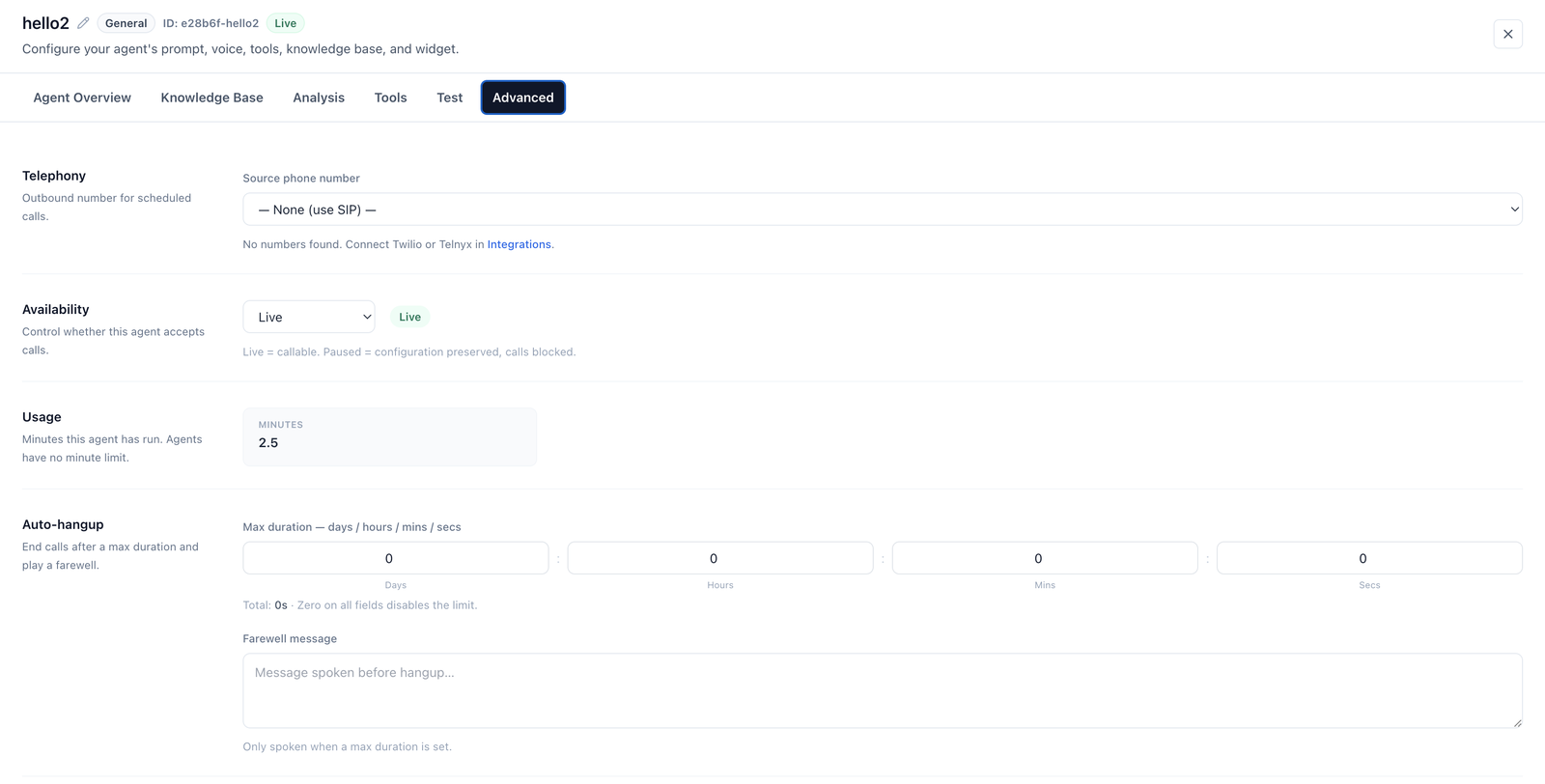
Agents → open the agent → Advanced tab.
Five sections, none of which you need on day one:
| Section | What it does |
|---|---|
| Telephony | Source phone number — the outbound number used for scheduled calls. Shows "— None (use SIP) —" until you connect Twilio or Telnyx |
| Availability | Live or Paused. Live = callable. Paused = configuration preserved, calls blocked |
| Usage | Minutes this agent has run. Agents have no minute limit of their own |
| Auto-hangup | Max duration in days / hours / mins / secs, plus a Farewell message |
| Danger zone | Reset configuration and Delete agent |
Two behaviours worth knowing:
- Zero on all four duration fields disables the limit — that's the default, so calls are not time-capped unless you set one.
- The farewell message is only spoken when a max duration is set. It's the line the agent says before hanging up on the timer, not a general goodbye — the agent's normal sign-off comes from your system prompt.
Speech timing isn't here
Barge-in sensitivity, silence thresholds and the rest of the turn-taking machinery are not exposed on this tab. They exist in the runtime configuration but aren't editable in the dashboard. If an agent interrupts too eagerly or waits too long, treat it as a prompt and testing problem first, and contact iCallAgent if the timing itself needs tuning.
Verify the conversation, not just the save
Saving is not the same as working. Check three things:
- Test tab — Agents → agent → Test → Start test call. Does it handle the main case, refuse the out-of-scope case, and hang up cleanly?
- A real call — phone or widget. Real audio surfaces timing problems the Test tab can't.
- The transcript — left sidebar → Monitor → Conversations → open the call. Read what the agent heard, not what you said. When an agent misbehaves, the transcript usually shows it acting sensibly on something it misheard.
Connect it to the world
| Goal | Where to click | Guide |
|---|---|---|
| Answer a phone number | Deploy → Phone Numbers | Phone numbers |
| Call a list of people | Deploy → Campaigns | Outbound campaigns |
| Trigger from another system | Configure → Integrations | Integrations |
Next
- Writing the system prompt — the highest-leverage page here
- Testing your agent
- What happens during a call