
Testing your agent
An agent that works when you test it politely will still fail on real callers, because real callers mumble, interrupt, change their mind, and ask things you didn't plan for. This page is about finding those failures before they do.
Pick the right test surface
Use the Test tab while building. Make a real phone call before launch. The website demo is for evaluating iCallAgent, not for evaluating the agent you configured.
| What you need to learn | Use | What it cannot tell you |
|---|---|---|
| Does my prompt, knowledge, and tool setup behave correctly? | Test tab | Phone/audio conditions and production telephony |
| Does the caller experience sound natural on their device? | Real phone call | It takes phone setup and a contact/campaign |
| What does an iCallAgent demo sound like before I sign up? | Website demo | Nothing about your own agent |
Three ways to hear your agent
Use the Test tab first
Path
- Open the dashboard.
- Left sidebar → Configure → Agents.
- Click the agent you want to test.
- In the top tab row, click Test.
- Click Start test call.
- Allow the browser microphone when prompted.
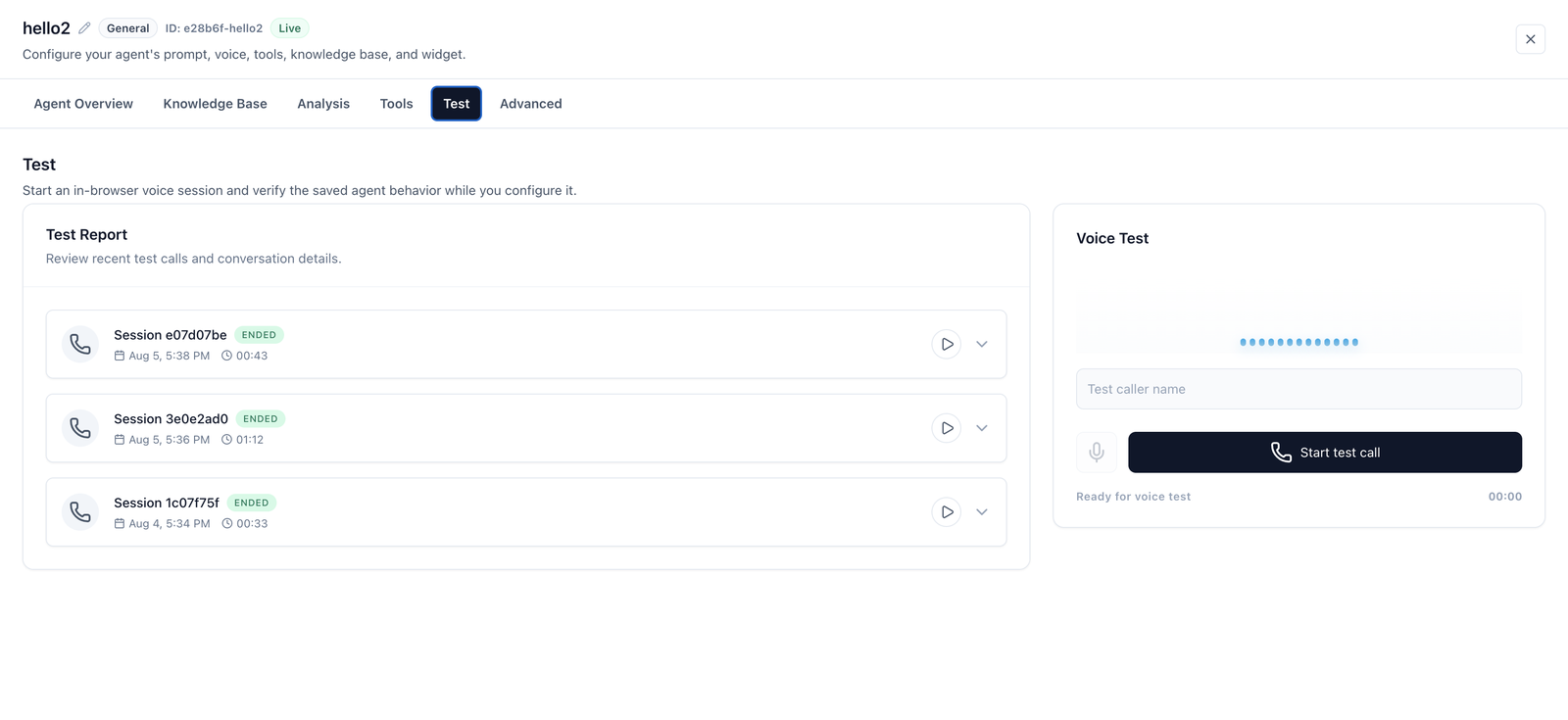
This talks to your agent — your prompt, your voice, your model, your tools — through your browser's microphone. No phone number or website embed required.
It uses the same transport as the web widget: browser mic capture and streamed audio back. Which means it's subject to the same domain check:
It works out of the box — until you deploy the widget
The Test tab authorises with the dashboard's origin, and agents created in the dashboard have their allowed domain set to the dashboard automatically. So Test works the moment you create an agent, with nothing to configure.
The catch comes later: pointing that value at your own site so an embedded web widget can connect stops the Test tab working. It then reports "Saved widget access allows <your domain>" and refuses with forbidden origin.
Matching is on hostname only — scheme and port ignored, case-insensitive, but subdomains exact. There is no control in the dashboard for changing this value; it's set over the agent API.
If Test says you need a saved runtime first:
- Open the Agent Overview tab.
- Confirm prompt / voice / first message look right.
- Click Save changes (side panel) and/or Close and save (top-right X).
- Re-open the agent → Test → Start test call.
If it refuses with a message about call minutes or balance instead, that's a different gate:
- Left sidebar → Settings → Billing.
- Top up, then return to Test.
What it's good for: everything you say and it says. Prompt behaviour, knowledge lookups, tool calls, whether it hangs up properly. Use it constantly while writing the prompt.
What it can't tell you: whether it interrupts people, whether the pauses feel right, or how it copes with a noisy room. Those are audio problems and need a real call.
Before launch: a real phone call
The full path — telephony, network jitter, mobile audio, speakerphone. The only test that exercises what your callers actually experience.
Getting the agent to ring your own mobile takes a phone number, a contact and a campaign: Call your own phone →
Website demo (not your agent)
The icallagent.com home page has a voice agent you can talk to immediately — no account, no setup. Pick a persona, click to talk, and watch the live transcript as you speak.
What it's good for: hearing what a voice agent sounds like, and showing a colleague, before you build anything.
What it isn't: your agent. It runs a demo persona with its own prompt and voice, and it's time-limited per visitor. Nothing you configure appears here.
What to test
Work through these five categories on the Test tab. Most agents fail at least one.
1. The happy path
Ask for the main thing the agent is for — booking, order status, hours — exactly the way a calm caller would. It should succeed without looping or rambling.
2. Out of scope
Ask for something the business doesn't do. It should refuse clearly and offer a next step (take a message, transfer, hang up politely) — not invent capabilities.
3. Ambiguity
Give half a request: "How much?" with no product, or a time with no date. A good agent asks one clarifying question. A weak agent guesses.
4. Ending the call
Say you're done. The agent should say goodbye and hang up — not sit in silence waiting for you.
If it can't hang up, assign the hangup tool on the agent's Tools tab. See Tools.
5. (If you have them) Knowledge and tools
- For knowledge: ask a fact that's only in your uploaded docs, then a fact that isn't.
- For tools: force a lookup or booking and confirm the tool result appears in the conversation.
Always read the transcript
Path
- Left sidebar → Monitor → Conversations.
- Open the call you just made (filter by agent if you have many).
- Read the turn-by-turn transcript, tool returns, and timing.
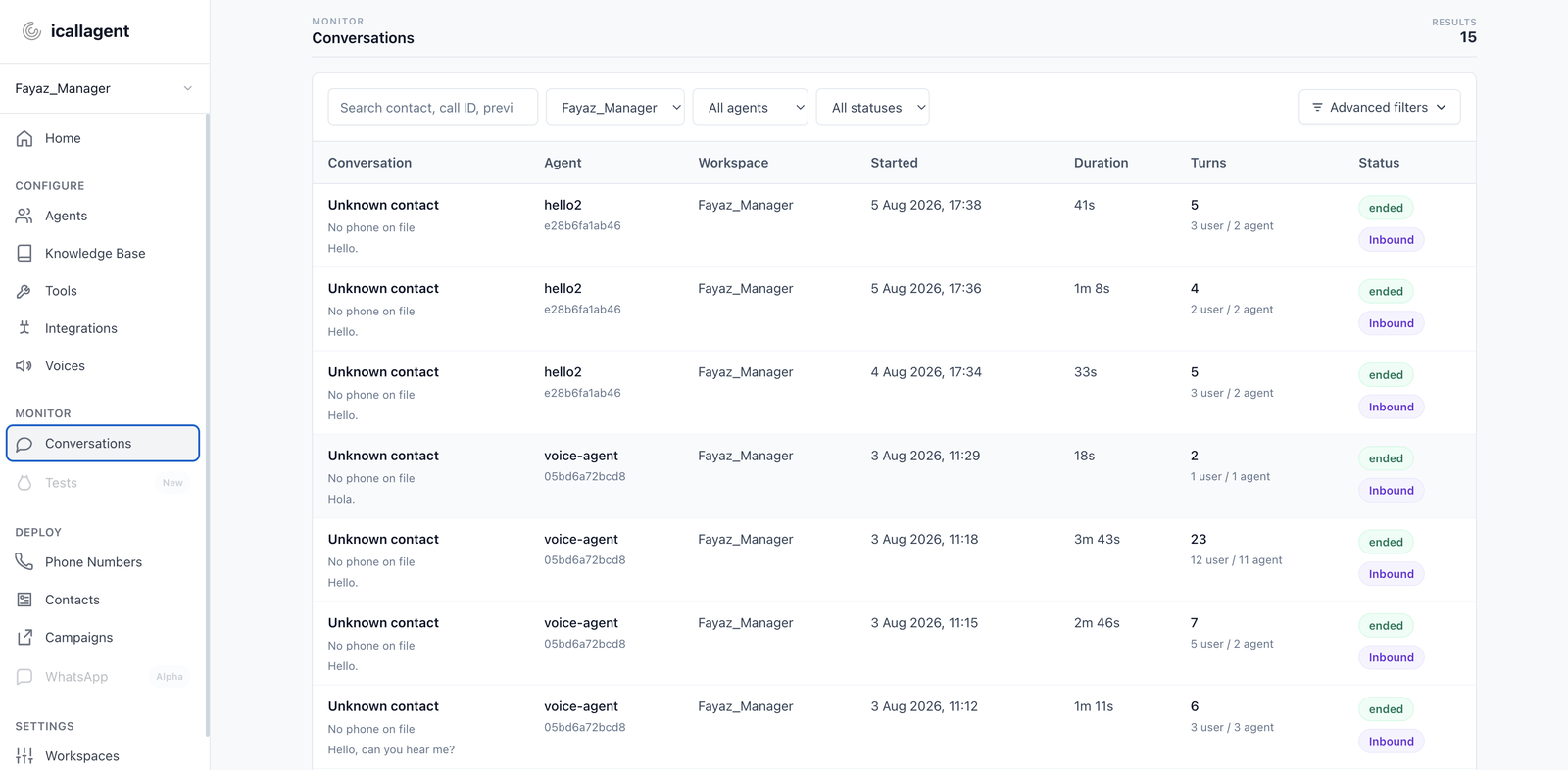
When something feels wrong in the call, the transcript usually shows the agent doing something sensible on a misheard line. Fix ASR-sensitive prompts and confirmation rules there — not by adding more personality wording.
Next
- Call your own phone — real telephony dry-run
- Writing the system prompt — fix what Test exposed
- What happens during a call