
Call your own phone
The most useful test you can run: have the agent ring your own mobile, and answer it. It's the only way to hear what your callers will actually hear — real telephony, real mobile audio, real network jitter.
There's no "call me now" button. Outbound calling always goes through a campaign, so the sequence is: add yourself as a contact, put yourself in a campaign, activate it.
Test in the browser first
Get the conversation right on the agent's Test tab before spending a phone call on it.
Agents → agent → Test → Start test call. See Testing your agent.
Before you start
You need a phone number, which means a telephony account connected:
- Left sidebar → Configure → Integrations.
- Add Twilio (Account SID + Auth Token) or Telnyx (API key).
Credentials are verified before saving, so a bad pair is rejected immediately. - Left sidebar → Deploy → Phone Numbers.
- Provision a number, or click Sync all to pull in numbers you already own.
You also need the agent Live (Agents → agent → status pill), and enough balance — left sidebar → Settings → Billing. An exhausted account refuses calls before any audio flows.
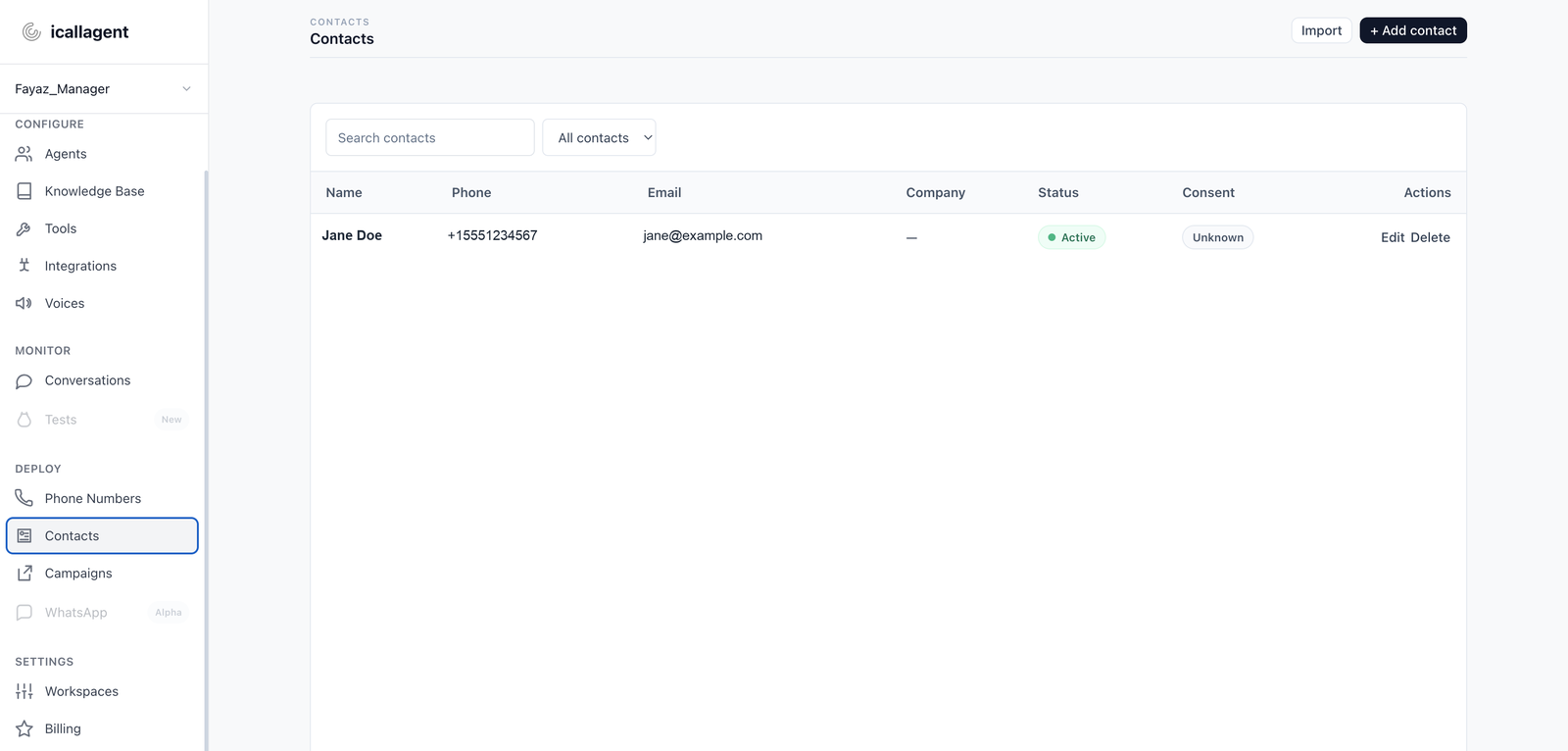
1. Add yourself as a contact
- Left sidebar → Deploy → Contacts.
- Click + Add contact (or Add your first contact if the list is empty).
- Fill:
| Field | Put |
|---|---|
| Phone | Your own mobile, with country code — +15551234567 |
| Name | Your name, so you recognise it in the call list |
| Consent | Granted — see below |
Leave email, company, department and notes empty.
Consent is enforced, not decorative
Every outbound call is checked against the blacklist, the do-not-call list and the contact's consent status before it's placed. A blocked contact is never dialed, and the attempt is rejected with a reason rather than silently skipped.
You're calling yourself, so Granted is honest. Don't get in the habit of setting it on contacts who haven't actually consented — that field is what keeps your outbound calling lawful.
2. Create a campaign
- Left sidebar → Deploy → Campaigns.
- Click + New Campaign (or Create your first campaign).
- The wizard walks through:
- Name —
Test callwill do. - Agent — the one you want to hear. Required; without it there's no agent to place the call.
- Numbers to call from — the number you provisioned. This becomes the caller ID.
- Contacts — add yourself (import from contacts when the wizard offers it).
- Schedule & limits — leave the schedule empty for now, so it can dial immediately. Set concurrency to 1.
- Compliance — includes an AI disclosure script. Read the note below.
Disclosure is a legal requirement in many places
Several jurisdictions require you to tell people they're speaking to an AI. The campaign has a disclosure script field for exactly this. Rules vary by country and by state — know what applies to you before calling anyone who isn't you.
3. Activate it
Only campaigns set to active are ever dialed. A campaign left in draft holds your contact and calls nobody — this is the single most common reason a test call never arrives.
On the campaign, set the status to active.
4. Answer your phone
The dialer works through active campaigns on its own schedule rather than firing the instant you click. Give it up to a minute.
When it rings, answer it and have a real conversation. Try to break it:
- Interrupt mid-sentence and see whether it stops
- Say "mm-hmm" while it talks and see whether it wrongly stops
- Pause mid-sentence to think and see whether it jumps in
- Put it on speaker and repeat — that's where timing problems surface
5. Read the transcript
- Left sidebar → Monitor → Conversations.
- Open the call.
Check what the agent heard against what you said, which tools ran, and the per-turn timing. See Testing your agent.
6. Clean up
When you're done testing, pause or complete the campaign under Deploy → Campaigns. An active campaign with your number in it will keep calling you on retries.
If your phone never rings
Work down this list — it's roughly ordered by how often each is the cause:
| Check | Where to click | Why |
|---|---|---|
| Is the campaign active? | Deploy → Campaigns → open it | draft and paused hold contacts without dialing |
| Has a minute passed? | Wait | The dialer runs on its own schedule |
| Is the agent Live? | Configure → Agents → agent status | A paused agent places no calls |
| Is a phone number on the campaign? | Campaign wizard / edit | Without one there's no caller ID and no route |
| Is your contact blacklisted or consent revoked? | Deploy → Contacts | The compliance gate blocks it |
| Does the campaign schedule allow now? | Campaign schedule | Time-of-day, weekday and excluded-date rules all gate dialing |
| Is there balance? | Settings → Billing | Exhausted balance refuses calls |
| Is the number correct, with country code? | Contacts | +1…, not 555… |
If the call appears under Conversations with status failed, the hangup cause tells you what happened at the telephony layer — that's a different problem from never being dialed at all.
Next
- Outbound campaigns — doing this for real, at scale
- Phone numbers — SIP and BYOC as alternatives to Twilio/Telnyx
- Testing your agent